![logo-black-tangible_growth 1-1.png]](https://support.tangible-growth.com/hs-fs/hubfs/logo-black-tangible_growth%201-1.png?height=23&name=logo-black-tangible_growth%201-1.png)
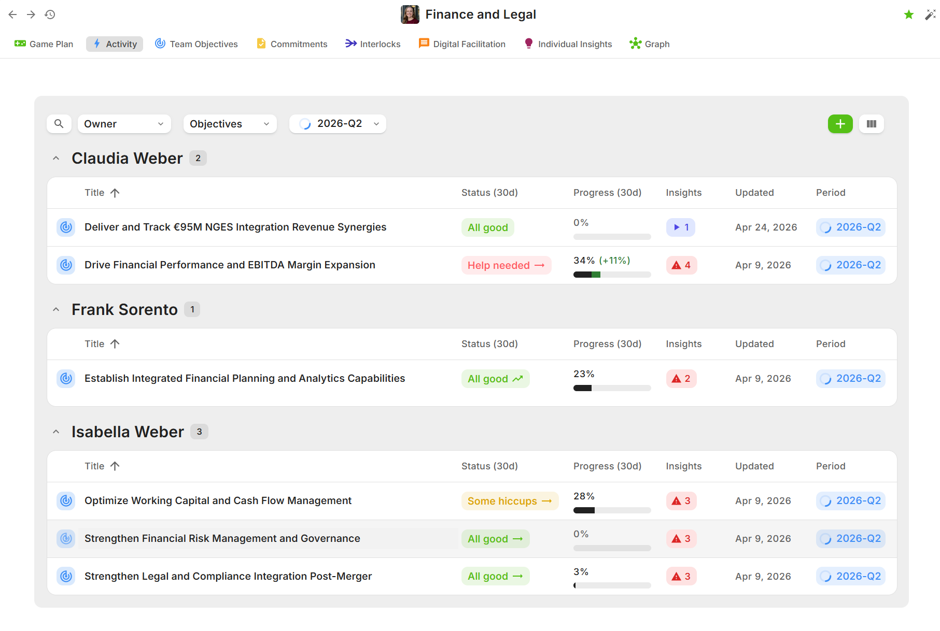
Filter the items to show using the search function.
Select the view grouping type
|
Category
|
What It Means
|
What Triggers It
|
|
Needs Attention |
Concerning signals requiring action |
Confidence dropped significantly, progress went backwards, item is overdue, a dependency is degraded, or child key results are struggling |
|
Not Updated |
Gone too long without meaningful engagement |
No modifications, no check-ins, or progress stagnant beyond the selected time window |
|
Progressing Well |
Showing positive momentum |
Confidence or progress improved, regular check-ins recorded, or recent meaningful activity |
|
Recently Completed |
Finished within the review period |
Key result reached 100%, commitment completed, or interlock resolved |
|
Not Started |
Scheduled for the future or newly created |
Has a future start date, or was just created and hasn't had time to generate activity signals |
Select the types of items to show on the top level
- Objectives, Key Results, Commitments, Interlocks
Select the time period to show
- Current or future periods are selectable
Configure columns
- Define the columns to show
- Define the time range to utilize in the view (tie it to the cadence of your meeting)
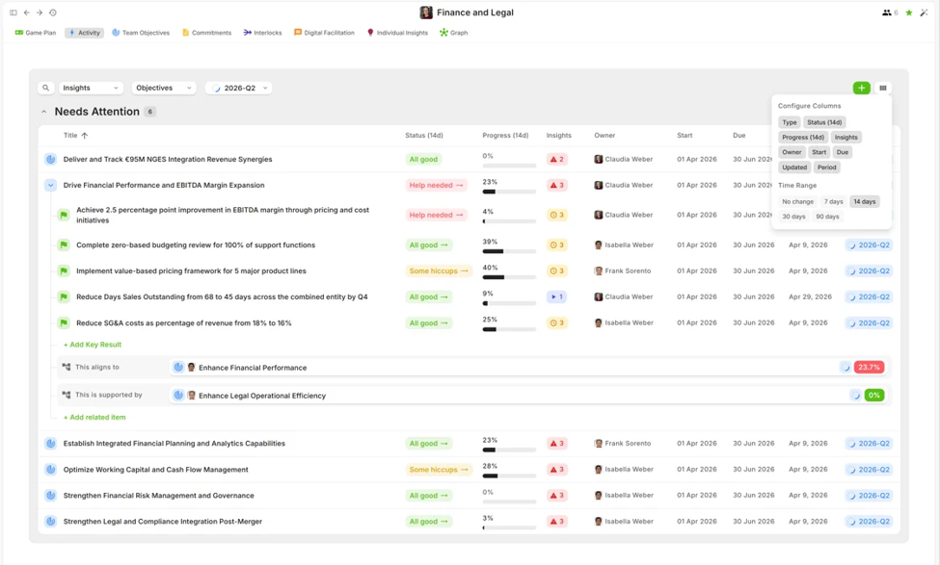
The configured view is accessible by the URL of the page
Use this as a link in your Game Plan and/or meeting invites to have the correct view always present when you start your meetings.